

Building a Branded Client Portal: Design, Features & UX
Your client portal is the only part of your agency that clients interact with every week. More than your website. More than your proposals. More than your Instagram.
And most agencies treat it like an afterthought. Default colors, no logo, a generic login page that screams "free trial of some SaaS tool." Then they wonder why clients never log in.
I've set up portals where the first thing a client said was "this looks really professional." I've also set up portals where the client asked if the link was spam. The difference wasn't the tool. It was whether someone spent 30 minutes making it look like it belonged to the agency.
This isn't about being a design agency. You don't need a design team or pixel-perfect branding guidelines. You need a portal that looks like yours, works on a phone, and doesn't confuse people. That's the bar. Let's clear it.
If you're researching portal tools overall, start with our complete guide to client portals for agencies. If you're comparing specific platforms, check the software comparison.
A branded client portal is a white-labeled, agency-customized space where clients log in to check projects, submit requests, and access files, all under your agency's logo, colors, and domain instead of a generic software vendor's branding.
Why branding your portal matters
Your portal is a trust signal. Every time a client logs in and sees a professional, branded experience, it reinforces confidence in your agency. An unbranded portal does the opposite.
Here's the thing most agencies underestimate: a client portal is a trust signal. Every time a client clicks that link, they're forming an opinion about your agency. A branded portal says "we have our act together." An unbranded one says "we signed up for something and never finished setting it up."
Think about it from the client's perspective. They're paying you $3,000, $5,000, maybe $10,000 a month. They click a link to check on their project and they land on a page with someone else's logo and a color scheme that has nothing to do with your agency. That's a disconnect. It doesn't ruin the relationship on its own, but it chips away at the perception of professionalism, one login at a time.
First impressions in digital products form in about 50 milliseconds, according to research published in Behaviour & Information Technology. Your portal's appearance is doing heavy lifting before a client reads a single word.
There's a practical reason too. When the portal looks like your agency, clients are less likely to contact the tool's support team with questions about your workflow. It reduces confusion about who owns the experience. That sounds minor until you get an email from your client saying "I contacted [tool name] about my project status and they didn't know what I was talking about."
Brand your portal. It takes less time than you think and pays back in client confidence every single week.
White-label requirements: what to actually look for
White-label means different things to different vendors, so check for custom domains, logo/color control, "Powered by" removal, and branded email templates before you commit.
"White-label" means different things to different vendors. Some platforms call it white-label when you can upload a logo. Others mean you can run the portal on your own domain with zero mention of their brand anywhere. Know what you're getting before you commit.
Here's the checklist:
- Custom domain or subdomain. This is the single biggest branding win.
portal.youragency.comorclients.youragency.comfeels like part of your agency.app.sometool.com/youragencydoes not. Most platforms support this through a simple DNS record, and it takes 10 minutes to configure. - Logo and brand colors. The bare minimum. You should be able to upload your logo, set primary and secondary colors, and have those colors carry through the entire portal (buttons, links, headers, sidebar). If the platform only lets you change the logo but keeps their default color palette, that's not real branding.
- Font customization. Less common, but matters if your brand has a distinctive typeface. Most portals default to system fonts, which is fine for 90% of agencies. But if your agency runs a strong visual brand, the inability to change fonts might bother you.
- "Powered by" removal. This is the one that separates serious white-label from cosmetic branding. Some tools stick a "Powered by [Tool Name]" badge in the footer or login page. Removing it is usually locked behind a higher pricing tier. If brand perception matters to you (and it should), check whether removal is included in your plan or costs extra.
- Email template branding. Portal notifications go straight to your client's inbox. If those emails show the tool's branding instead of yours, you've undermined the entire point. Look for customizable email templates with your logo, colors, and a "from" address that matches your domain.
Which platforms support what
Not every tool gives you the same branding control. Here's how they stack up:
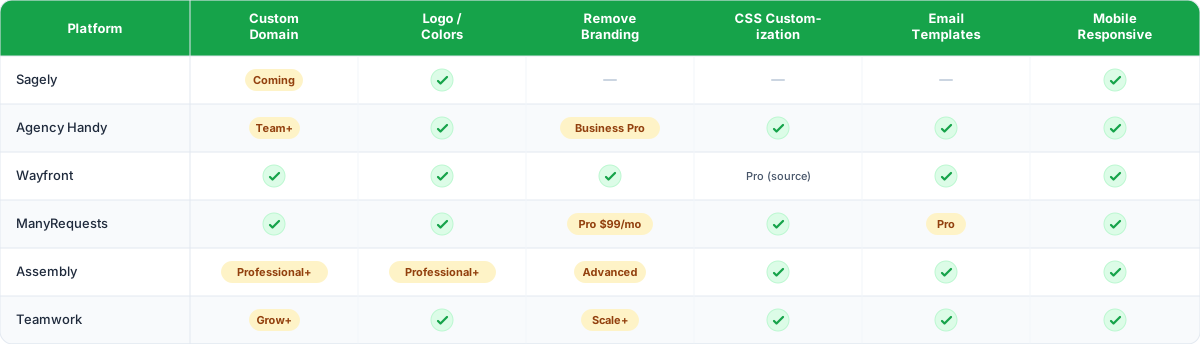
A few notes on this table. Sagely is newer and its branding features are still being built out. If deep CSS customization is important to you, Wayfront and ManyRequests give you the most control. If you just need logo, colors, and a clean look, most of these get you there on midrange plans.
Portal UX best practices
Good portal UX means dead-simple navigation, plain language labels, and putting the client's most common action one click from the main screen.
Good portal branding gets a client in the door. Good UX keeps them coming back. And the bar for "good UX" in agency portals is surprisingly low, because most portals have terrible UX.
- Keep navigation dead simple. Three to five main items in the sidebar or top nav. That's it. Projects. Messages. Files. Requests. Maybe invoices. Clients don't need a dashboard with twelve widgets and a notification bell they'll never click. They need to find their stuff and get on with their day.
- Prioritize the client's most common action. What does your client do 80% of the time they log in? Check project status? Submit a request? Download a file? Whatever it is, make that action reachable in one click from the main screen. If your client has to click through three pages to check status, they'll go back to emailing you.
- Show, don't bury. Project status should be visible immediately after login. Not behind a "Projects" tab, then a project name, then a "Status" section. The most important information should be on the first screen a client sees. Hubspot research found that 76% of consumers say the most important factor in a website's design is that it makes it easy to find what they want. Portal design is no different.
- Label things in plain language. Don't use internal terminology. If your team calls something a "service ticket," but your clients would call it a "request," use "request." Don't make clients learn your vocabulary. This sounds obvious but I see it constantly. Agencies build their portal around their internal workflow language and then wonder why clients can't find things.
- Include an onboarding prompt for first-time users. A simple welcome message or guided tour for new portal users cuts support questions by half. Nothing complex. Just "Here's where you submit requests. Here's where your files live. Here's where you check status." Three sentences, three screenshots, done.
Mobile experience
Over 60% of web traffic is mobile, so your portal needs to be touch-friendly, readable without zooming, and tested on a real phone before you launch it to clients.
Your clients aren't sitting at desks all day. They're checking their phone between meetings, on a commute, waiting for coffee. If your portal doesn't work on mobile, it doesn't work for a significant chunk of your client interactions.
Over 60% of web traffic is mobile (Statcounter, 2025). That number has been climbing for years and it isn't going back down. Your portal needs to be responsive at minimum. Ideally, it should feel native on a phone with touch-friendly buttons, readable text without zooming, and a layout that doesn't break on smaller screens.
Here's what to test on your phone before launching:
Most modern portal platforms are mobile responsive by default (see the comparison table above), but "responsive" can mean anything from "it technically renders" to "it's actually pleasant to use." Test the actual experience yourself before rolling it out to clients.
Accessibility: the basics that matter
Hit baseline accessibility standards like color contrast, readable fonts, and keyboard navigation to make your portal usable for everyone and avoid creating barriers you didn't intend.
You don't need to pass a full WCAG 2.1 audit on your client portal. But hitting the baseline accessibility standards makes your portal usable for more people and protects you from creating barriers you didn't intend.
- Color contrast. If your brand colors are light pink text on a white background, your portal is unreadable for anyone with low vision (and honestly, for everyone else in bright sunlight). The WCAG minimum is a 4.5:1 contrast ratio for body text. Run your brand colors through a free contrast checker before applying them. WebAIM's contrast checker takes five seconds.
- Readable typography. 16px minimum for body text. Line height at 1.5x the font size. Left-aligned text (centered body text is surprisingly common in portal templates and it's hard to read in long blocks).
- Keyboard navigation. Some users navigate with keyboards instead of mice. Make sure the portal's core actions (login, submit request, upload file) work with Tab and Enter keys. Most modern platforms handle this out of the box, but test it.
- Link and button labels. "Click here" tells a screen reader nothing. "Submit a request" tells them everything. Use descriptive labels on buttons and links. This is also just better UX for everyone, not only users with assistive technology.
Design mistakes that kill client adoption
The most common portal design mistakes are over-customization, ignoring the login page, skipping onboarding, cluttering the dashboard, and never testing on mobile.
I've seen the same mistakes over and over. They're all avoidable.
- Over-customization. Some agencies spend weeks tweaking CSS, adding custom animations, building a portal that looks like a standalone web app. Then they change tools six months later and have to do it all again. Brand it, keep it clean, and move on. Your portal is a utility, not a portfolio piece.
- Ignoring the login page. The login page is the first thing every client sees, every time. If it still has the tool's default branding, a stock photo, and a "Welcome to [Platform Name]" heading, you've already lost the moment. Customize the login page first, before anything else.
- No onboarding path. Dropping clients into a portal with no guidance is like handing someone the keys to a car without telling them it's a stick shift. Include a welcome email with a short walkthrough, or a guided first-login experience. Our client portal setup guide covers this in depth.
- Cluttered dashboards. More widgets doesn't mean more value. Every element on the client's screen should answer one question: "What do I need to know right now?" If the answer is "nothing," remove it.
- Forgetting notifications. A portal without email or push notifications is a portal clients forget about. Configure alerts for new messages, status changes, and file deliveries. But don't over-notify. Nobody wants 15 emails a day from your portal. Send notifications for things the client would actually want to know about.
- Skipping mobile testing. I already covered this above, but it's worth repeating because I keep seeing it. Agencies test their portal on a desktop, nod approvingly, and never open it on their phone. Then clients complain that the request form is impossible to use on mobile. Test on both. Every time.
FAQ
What is a white-label client portal?
A white-label client portal is one where you can replace the software vendor's branding with your own. This means using your logo, brand colors, custom domain, and removing any "Powered by" badges so the portal looks and feels like part of your agency.
Does branding a client portal really affect client retention?
Yes. Clients who interact with a professional, branded experience have higher trust and are less likely to question their investment. It's not the only factor in retention, but it contributes to the overall perception that your agency has its act together.
How long does it take to brand a client portal?
For basic branding (logo, colors, custom domain), plan for 30 minutes to an hour. Deeper customization with CSS, email templates, and onboarding content might take a full afternoon. Either way, it's a one-time setup that pays back on every client login.
Do I need a designer to set up a branded portal?
No. Most portal platforms use simple upload fields and color pickers. If you can change your profile picture on social media, you can brand a portal. Custom CSS is available on some platforms for agencies that want fine-grained control, but it's not required for a professional result.